I ran into an interesting scenario where SQL Server wasn’t utilizing an index and was table scanning.
There was an existing index that it should have already been using. This caused queries to be slow and timeout.
To resolve this we added a query hint called “FORCESEEK”. This forces the query optimizer to search for an index to use.
Be cautious, however, as when using this hint “FORCESEEK” you must have a matching index to utilize appropriately.
Tag: SQL
-
SQL Not Choosing Correct Index – ForceSeek Hint
-
SQL – With NoLock Hint
When running a query against a database that is highly available and records can be accessed at any time, I typically use the “with (NoLock)” hint in my SQL statements.
This ensures that if I’m accessing the same record as another user that we do not cause a deadlock. NoLock also runs slightly faster because it doesn’t have to acquire a lock on records.
However, note that when using NoLock that you will also be able to see transactions/ records that have not been completed yet/ committed.
Therefore, I don’t recommend using “with (NoLock)” in applications because you could end up getting uncommitted records. I do recommend using “with nolock” when you are just querying the database to check specific records in the table(s) to prevent accidently locking a record someone else/ another application is attempting to access.
Example:
SELECT [Columns]
FROM [Table] with (nolock)
WHERE [condition] -
SQL – Select Issue/ Timing
Running into SQL query issues can sometimes cause issues. One issue ran into today is that a query which was a simple select, but the “where” statement had an “or” in it and it wasn’t wrapped in parenthesis, which caused almost all table records to be returned. This caused the tempdb to fill up.
If a query is taking more than a couple seconds to run generally something is wrong with the query or a missing index and its best to stop execution and review the query for issues.
-
Microsoft SQL Server – Limiting Memory Usage
To limit SQL servers’ memory usage SQL Server has a setting called “Maximum server memory (in MB)”. This setting is used to limit the amount of memory SQL server can use. By default, it can consume all memory and will release memory as other processes open on the system.
When multiple instances of SQL are running on the same system it is a good idea to set this value on each so one doesn’t consume all memory on its own.
I also typically set this setting on my development system as I don’t want all my memory consumed by SQL. I set mine to 1GB.
For a production environment this setting may be left alone (typically) as SQL Server is typically hosted on its own system and applications are on another.
Steps to set “Max server memory (MB)”:
- Open SQL Server Management Studio
- Login as a sysadmin
- Right click the SQL Server and choose properties in the object explorer
- On the server properties window choose “Memory” and set “Maximum server memory (in MB)”.
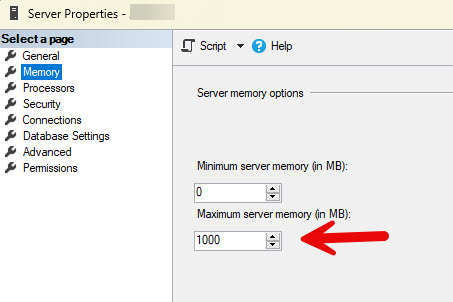
Additional information on this setting: